View Pratheep profile on LinkedIn
Matt Cutts

Monday, February 22, 2010

Targeting Users At Wrong #Advertising Medium? - The Online

Which is the easy, cost effective, high ROI and measurable advertising medium?

Obviously, the "Online" medium!

But the recent online activities show that the future of online advertising will be very tough!

Here is a little proof:

Note: As per the W3Schools browsers usage stats, Firefox, IE and Chrome are the top three browsers.


To show ads we need browsers capable of displaying ads. But what if the users say no to ads, then what will be next step to show ads? And how the user says "NO"!

Here is how?

What do you think the most popular browser extension/add-on for Google Chrome and Firefox?

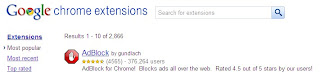
The Ad Blocker!

Firefox Popular Add-on
Image: Firefox Popular Add-on

Google Chrome – Popular Extension
Image: Google Chrome – Popular Extension

Millions of internet users say "NO" to ads, if this is the case then how you are planning to deliver your ads to online users using one of the above mentioned popular browsers?

This question kills so many advertisers, isn't?

So what is the possible solution?

Hint: Stop bugging like "Sales Representatives", understand user requirements and deliver ads accordingly! Or the online medium will not be an easy place to advertise.


I know this may not be the actual solution! But trying to find a perfect one...

Share your thoughts too!

Labels: , , , , ,

Tag the above posting to your favorite Book-marking website:

Google | Yahoo | Windows Live | Ask Jeeves | Netscape | Digg | del.icio.us | Technorati | Newsvine | Reddit | Blinklist

Saturday, November 28, 2009

Google Chrome - Recommended Extensions and Settings

In my previous post I briefed about the developer version of Chrome Ver4. In this post I have listed some extensions which I find it very useful. Please remember these extensions may work only in the developer version.

Important Note: If you are not able to use any of the extensions, please enable the extensions module by following the below steps:


In Chrome properties, change the "Target" add "-show-extensions" at end of it.

Eg: "C:\Users\Administrator\Local Settings\Application Data\Google\Chrome\Application\chrome.exe" -show-extensions

Now the list of extensions:

Google PR and Alexa Web Rank:

Google PR

Extension Name: Kuber PageRank Checker
Download URL: http://bit.ly/8dodRR
It adds a small icon next to the address bar which refreshes for each page you load
Update: Now the updated version of this extension includes Alexa web rank too.

Alexa Rank

Extension Name: Alexa Rank Display
Download URL: http://bit.ly/5wQREW
Adds alexa web rank to your status bar

Social Media:

Twitter:

Extension Name: Chromed Bird
Download URL: http://bit.ly/81DWJV
Adds icon next to the address bar which immediately alerts you about any new updates posted by your friends and direct replies too

Facebook:

Extension Name: Facebook Notifications
Download URL: http://bit.ly/60hZyE
A Facebook icon next to address bar indicates if there any new "updates" added to your Facebook profile

Utilities:

Gmail Alert:

Extension Name: Gmail Checker
Download URL: http://bit.ly/8RDZy3
Get email alerts next to the address bar and a preview too without opening a new tab

Google Waves Alert:

Extension Name: Google Wave Notifier
Download URL: http://bit.ly/5JpsCI
Check for new wave alert very next to your address bar

Google Feed Reader Alert:

Extension Name: TP Google Reader
Download URL: http://bit.ly/4SDJcK
One more icon next to address bar it changes its color to orange when it identifies the chromed page has a feed and you can easily subscribe/preview without opening a new tab

Google Task:

Extension Name: Google Tasks
Download URL: http://bit.ly/7QbXeM
Add a toggle button to your icon list and the task pane will be floating to your right-bottom of your browser

Google Calendar:

Extension Name: Go Calendar
Download URL: http://bit.ly/7DmWb2
Displays you next calendar appointment in your status bar, you can easily navigate between your appointments and reminders

Others

These are not extensions but few recommendations to use Chrome effectively:

Options:

Under basic tab, select the option “reopen the pages that were open last” to save the session whenever you close your browser

Pin Tab:

Pin the frequently used tab so that you can save a lot of space in your tabs bar. Right-click the tab and say “pin tab”

Bookmark/Status Bar on Top:

Bring your status bar on top so that it is easy to access few extensions very easily with little mouse movement. Do the following,

In Chrome properties, change the "Target" add "-show-extensions" at end of it.

Eg: "C:\Users\Administrator\Local Settings\Application Data\Google\Chrome\Application\chrome.exe" -show-extensions-on-top

Labels: , ,

Tag the above posting to your favorite Book-marking website:

Google | Yahoo | Windows Live | Ask Jeeves | Netscape | Digg | del.icio.us | Technorati | Newsvine | Reddit | Blinklist

Wednesday, November 26, 2008

Office Plugin - Save and Open ODF Files via Microsoft Office

I am using this tool for a while which is really useful and thought of sharing it with you.

Ever faced any difficulty in opening an ODF (Open Source Document Format) file in Microsoft Word? If so, here is the solution.

Download this little open source extension which was created with help of Microsoft's support and testing by Aztecsoft with many other companies involved.

Download the "ODF Translator for Microsoft Office" now!

Read more about the extension here.

Labels: , , , ,

Tag the above posting to your favorite Book-marking website:

Google | Yahoo | Windows Live | Ask Jeeves | Netscape | Digg | del.icio.us | Technorati | Newsvine | Reddit | Blinklist